Posting Spots
How to Post a Spot
When you find a spot you want to post, open the WheeLog! app and follow these steps.
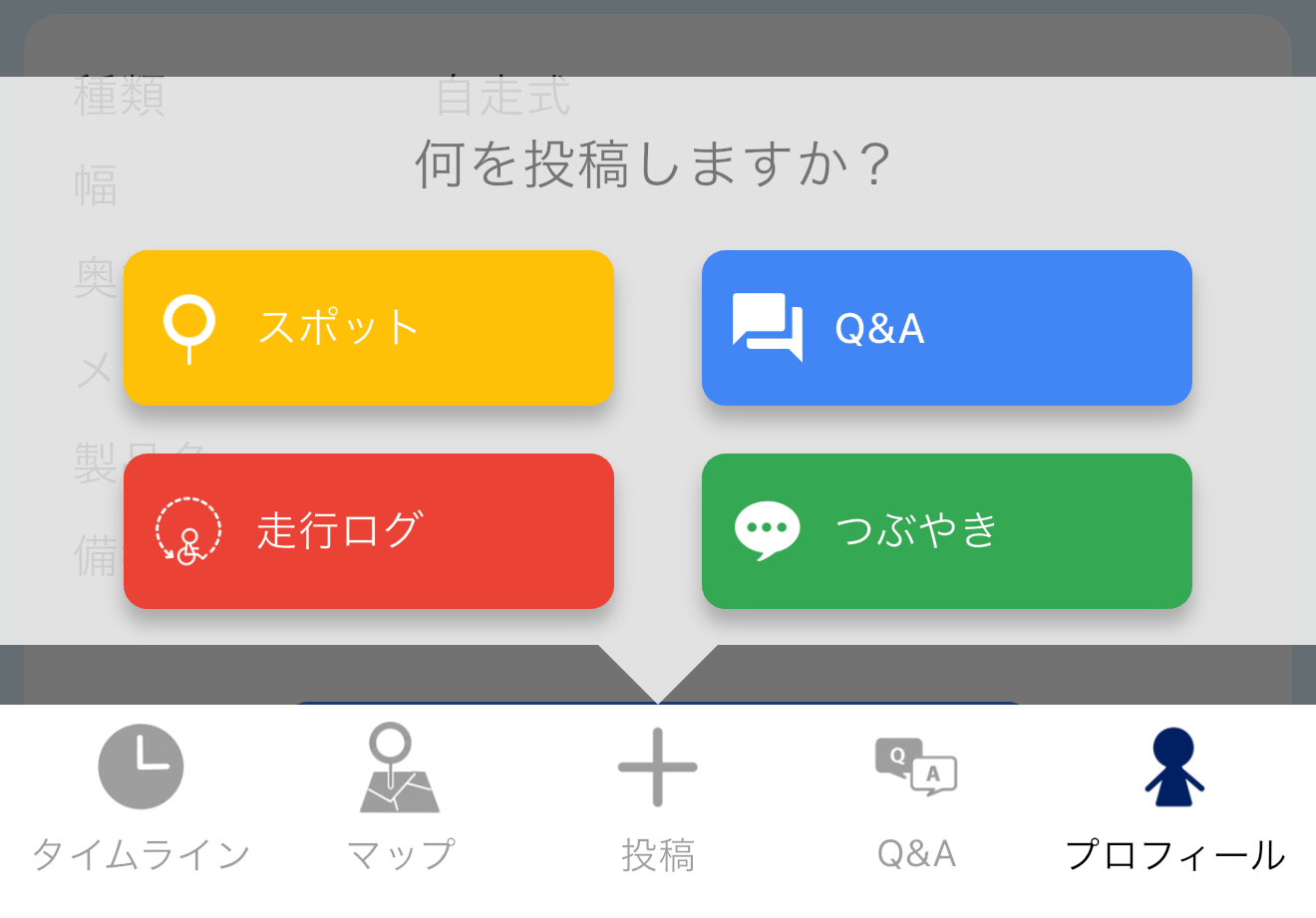
- Tap "+ Post" in the center of the menu
- Select "Spot"
- The "Choose a location" screen opens — find the location on the map
1. Set the location on the map
The "Choose a location" screen shows spots near your current location or the area you were viewing. There are 3 ways to find the location:
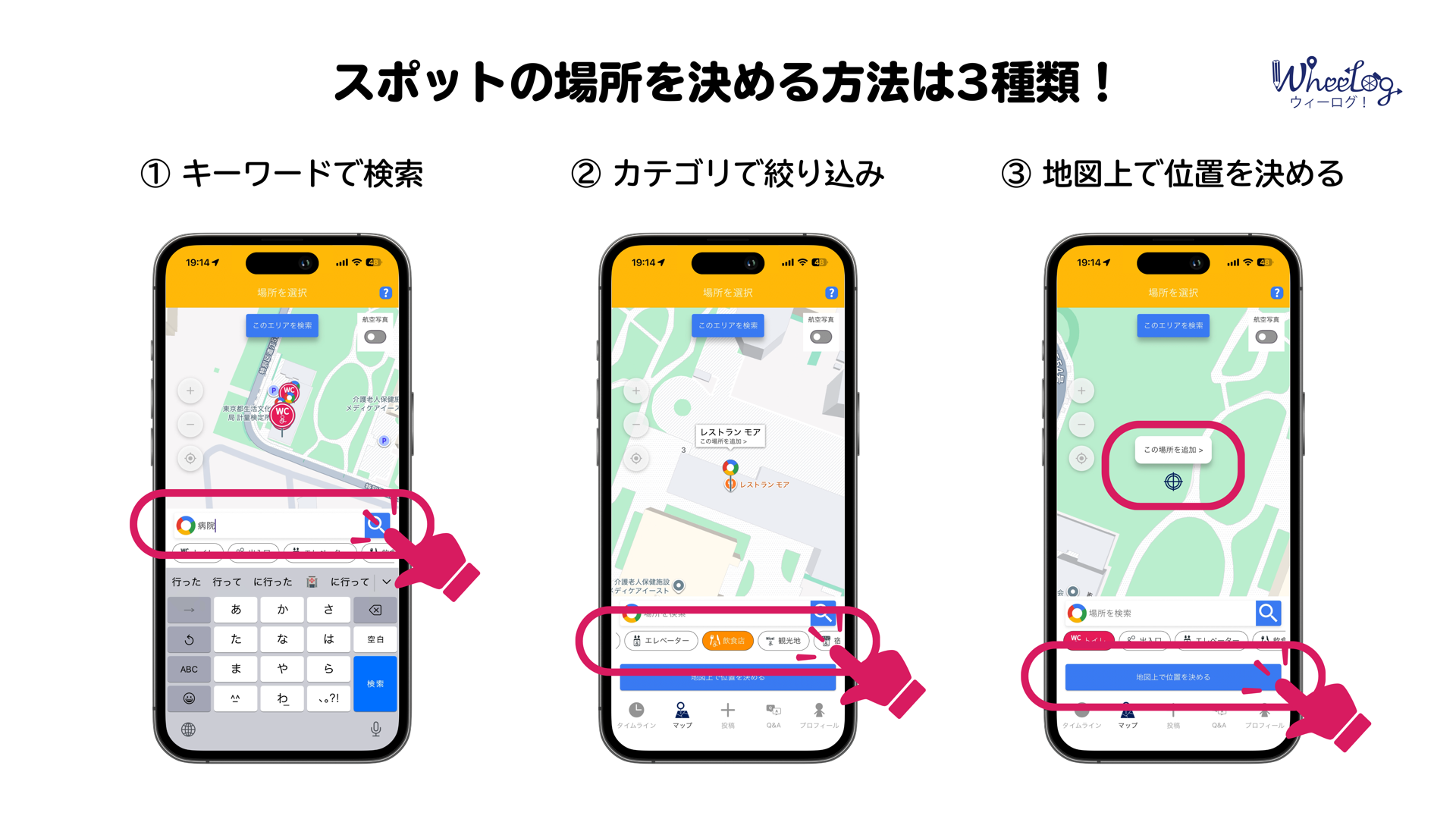
① Search by keyword
Enter a spot name or address in the input field at the bottom of the screen. This lets you quickly find places registered on Google Maps.
② Filter by category
Tap an icon (restroom, restaurant, etc.) below the search bar to filter the pins on the map to a specific category.
③ Set location on the map
If you can't find it by searching, or want to place a pin at a precise location, tap the blue "Set location on map" button.
- Drag the map to align the crosshair with the target location
- Tap "Add this place +" that appears in the center
- Search this area: If you move the map far and pins disappear, tap the "Search this area" button at the top.
- Aerial view: If the location is hard to identify, use the switch at the top right to switch to "Aerial view" to see building shapes in detail.
2. Enter information and post
Once you've confirmed the location, you'll proceed to the input screen.
New pin (new post)
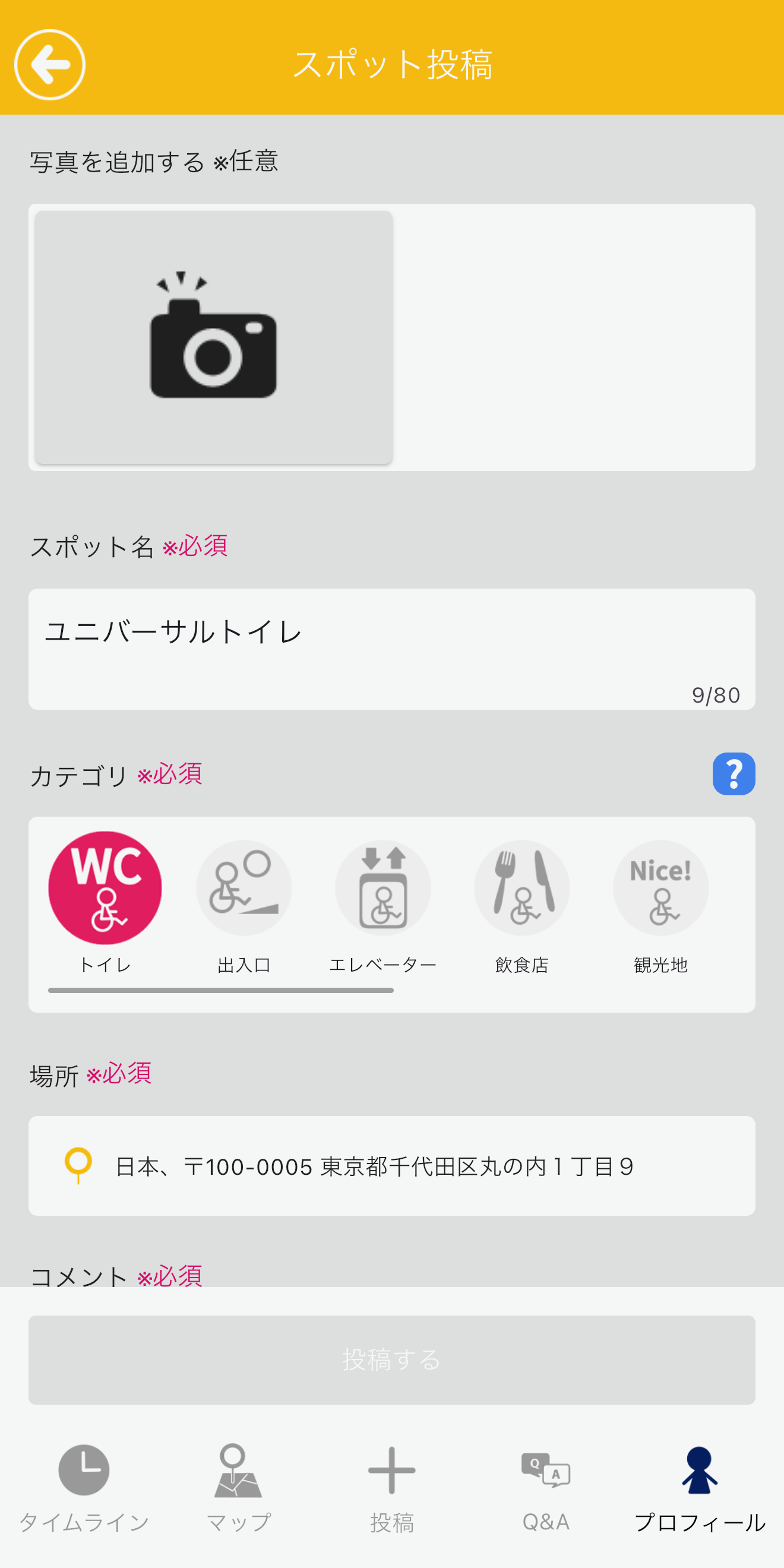
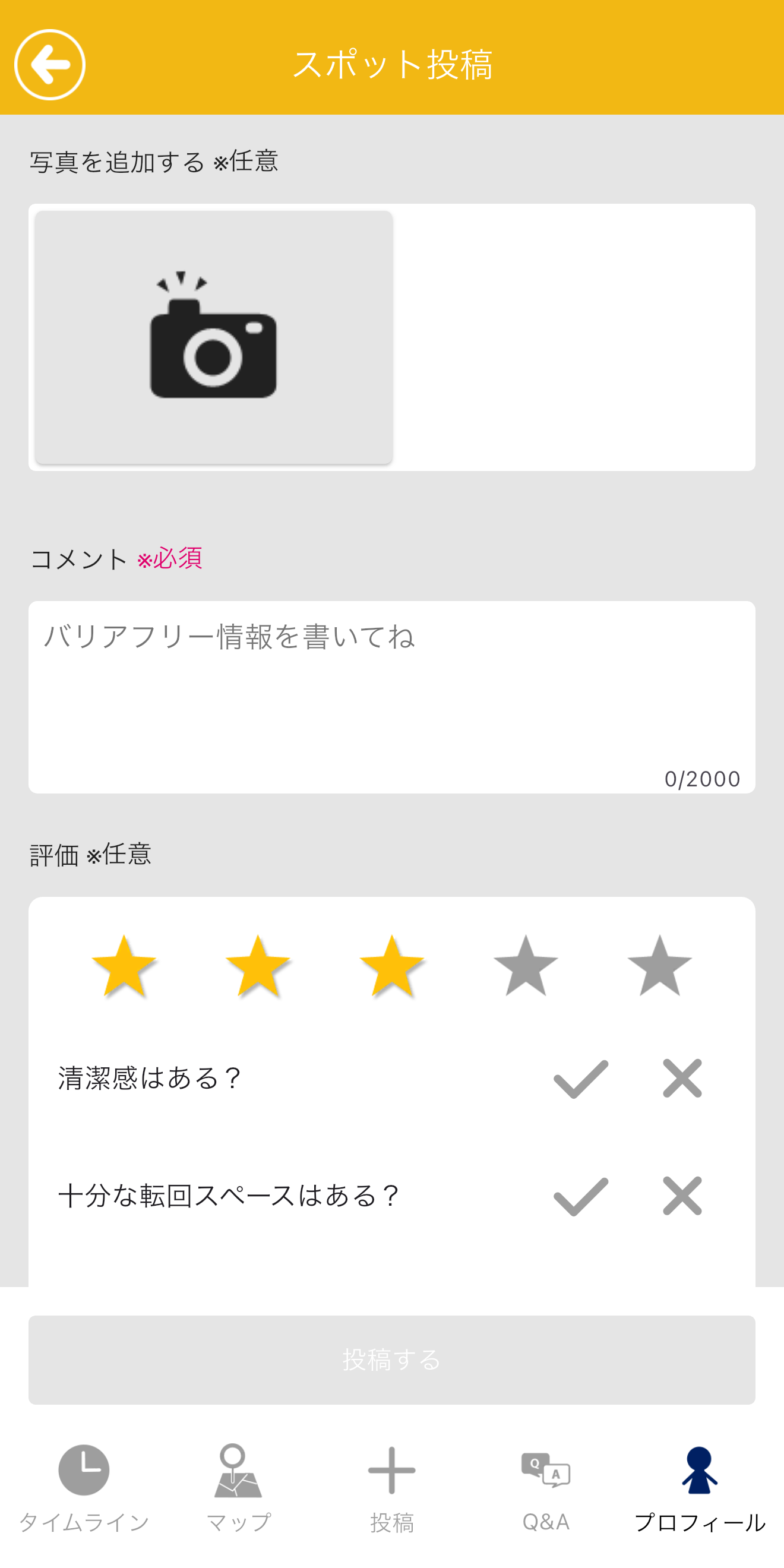
- Add photos (optional)
- Tap the camera icon to take a photo or choose from your library.
- Confirm / enter the spot name (required)
- Select a category (required)
- Enter a comment (required)
- Write about the accessibility features and your impression.
- Check evaluation items (optional)
- Respond to the 5-star rating and equipment (handrails, backrests, etc.) questions.
- Tap "Post" at the bottom of the screen to finish
If you're unsure about an evaluation item, it's fine to skip it.
When existing data is already present
If a pin already exists at the selected location, the previous information for that spot is displayed.
- Add photos (optional)
- Enter new notes in the comment field below (required)
- Fill in evaluation items (optional)
- Tap "Post" at the bottom of the screen to finish