How to Use the Q&A Feature
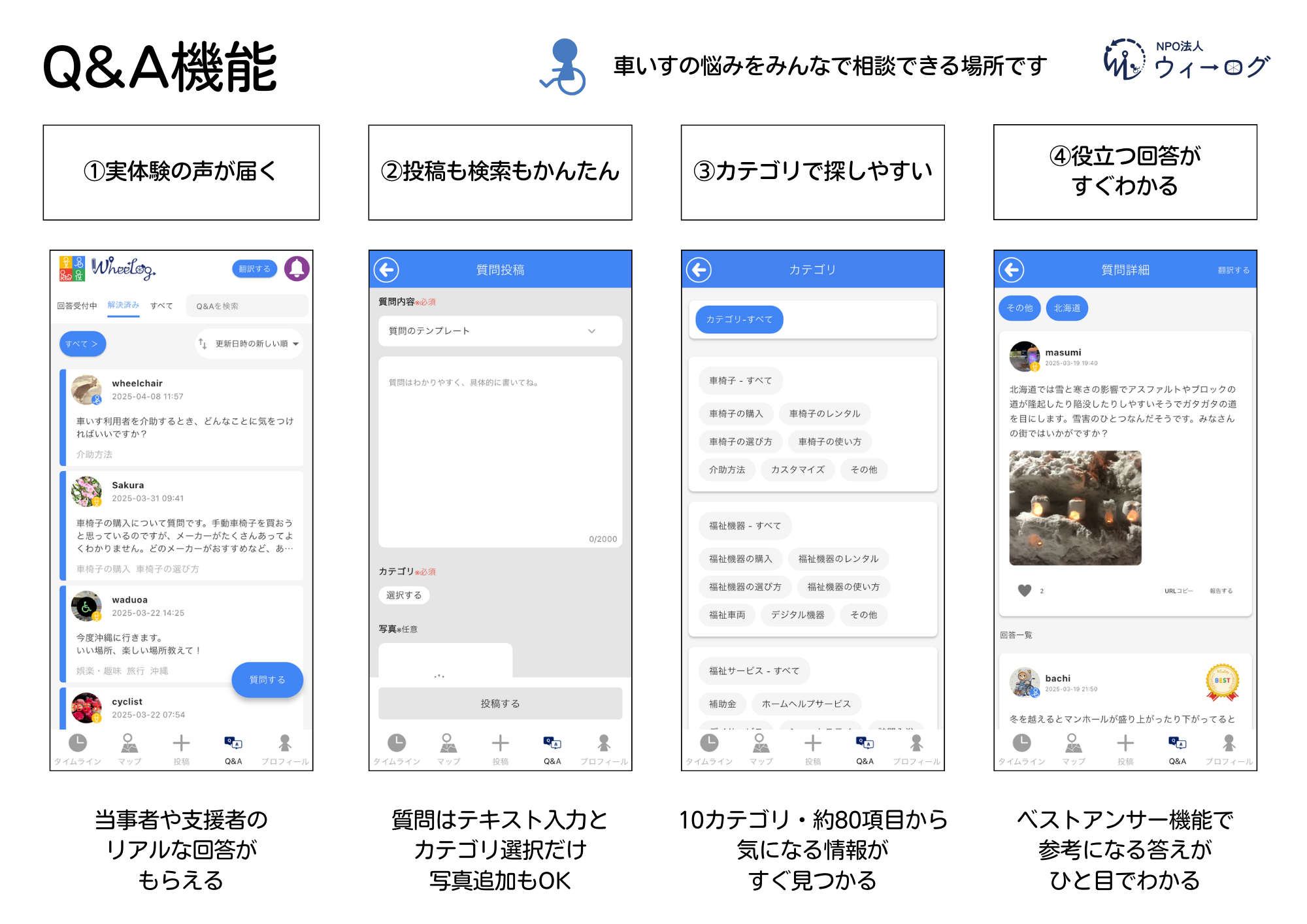
- A feature where users can discuss questions about wheelchairs and accessibility with each other.
- Posting questions and answers is simple. Questions are organized by category for easy browsing.
1. Viewing and searching questions
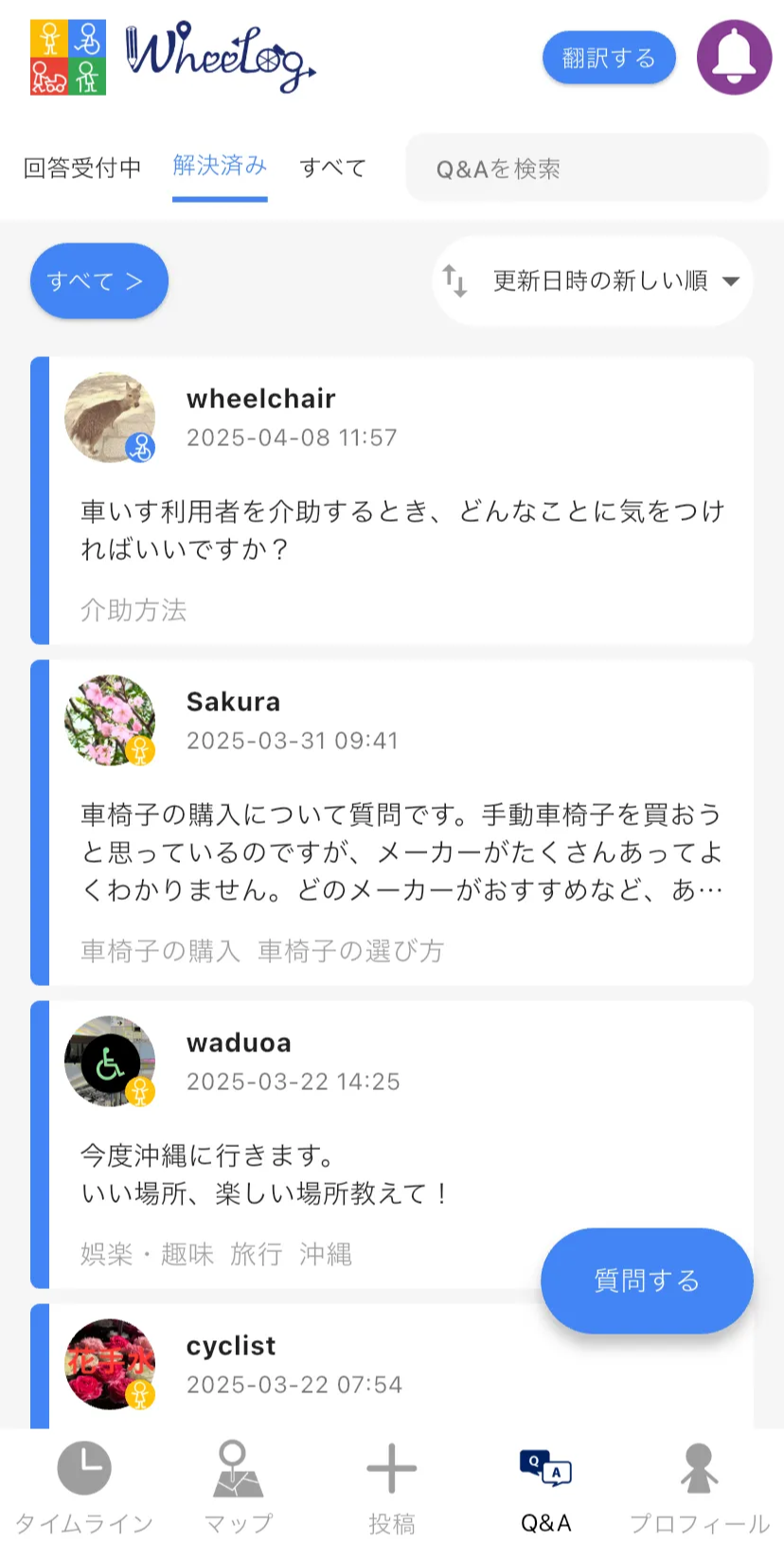
- Tap "Q&A" from the bottom menu and the latest questions are listed
- Tap a question to view its details and answers
- You can also use the keyword search or category filter at the top of the screen to find specific questions
Even just browsing can give you useful insights from other users' experiences and ideas.
2. Posting a question
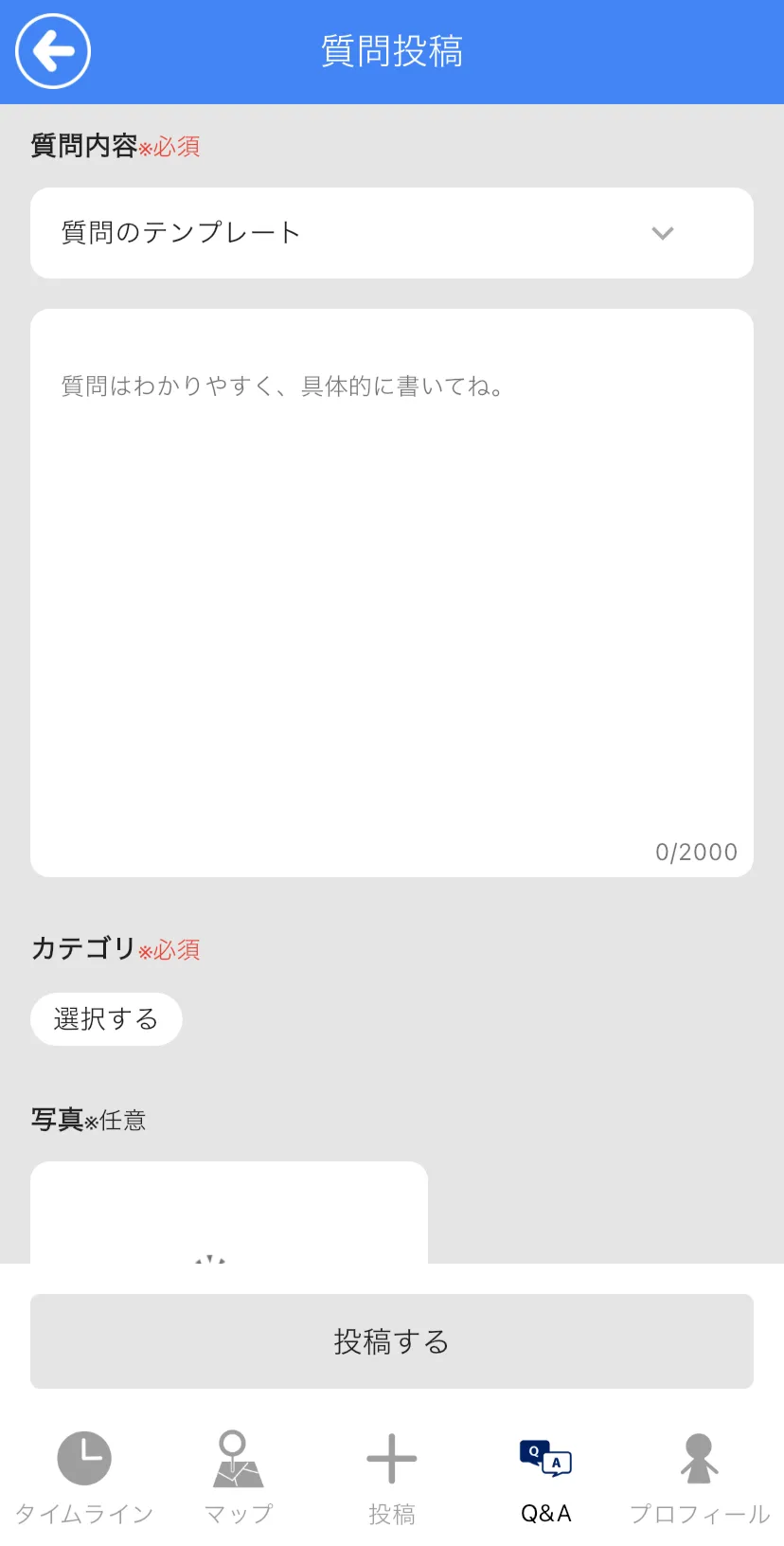
- Tap "Q&A" from the bottom menu
- Tap the "Ask a Question" button at the bottom right of the screen
- Enter the content of your question
- Select up to 3 categories
- Attach a photo if needed (optional)
- Tap "Post"
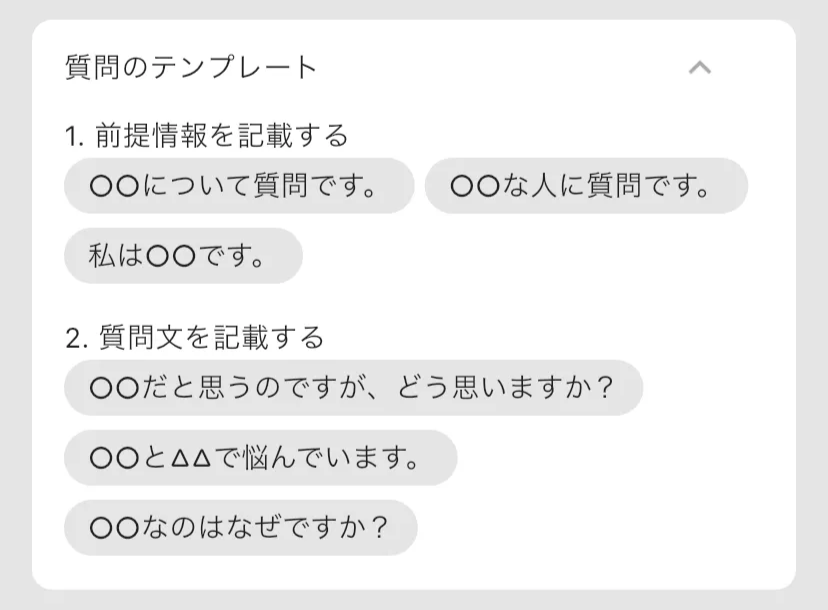
Using a template makes it easier to write a clear and easy-to-understand question.
3. Posting an answer
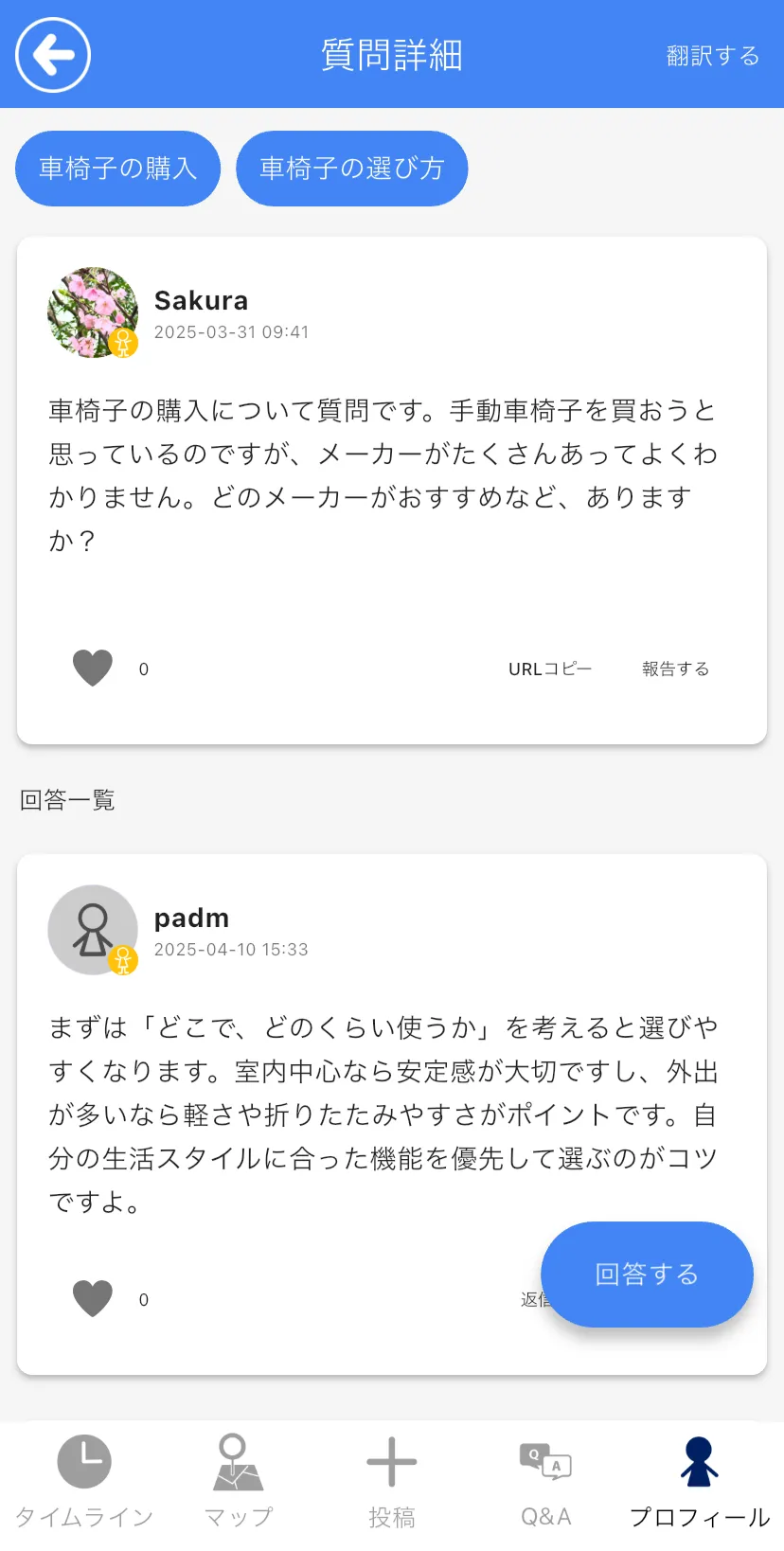
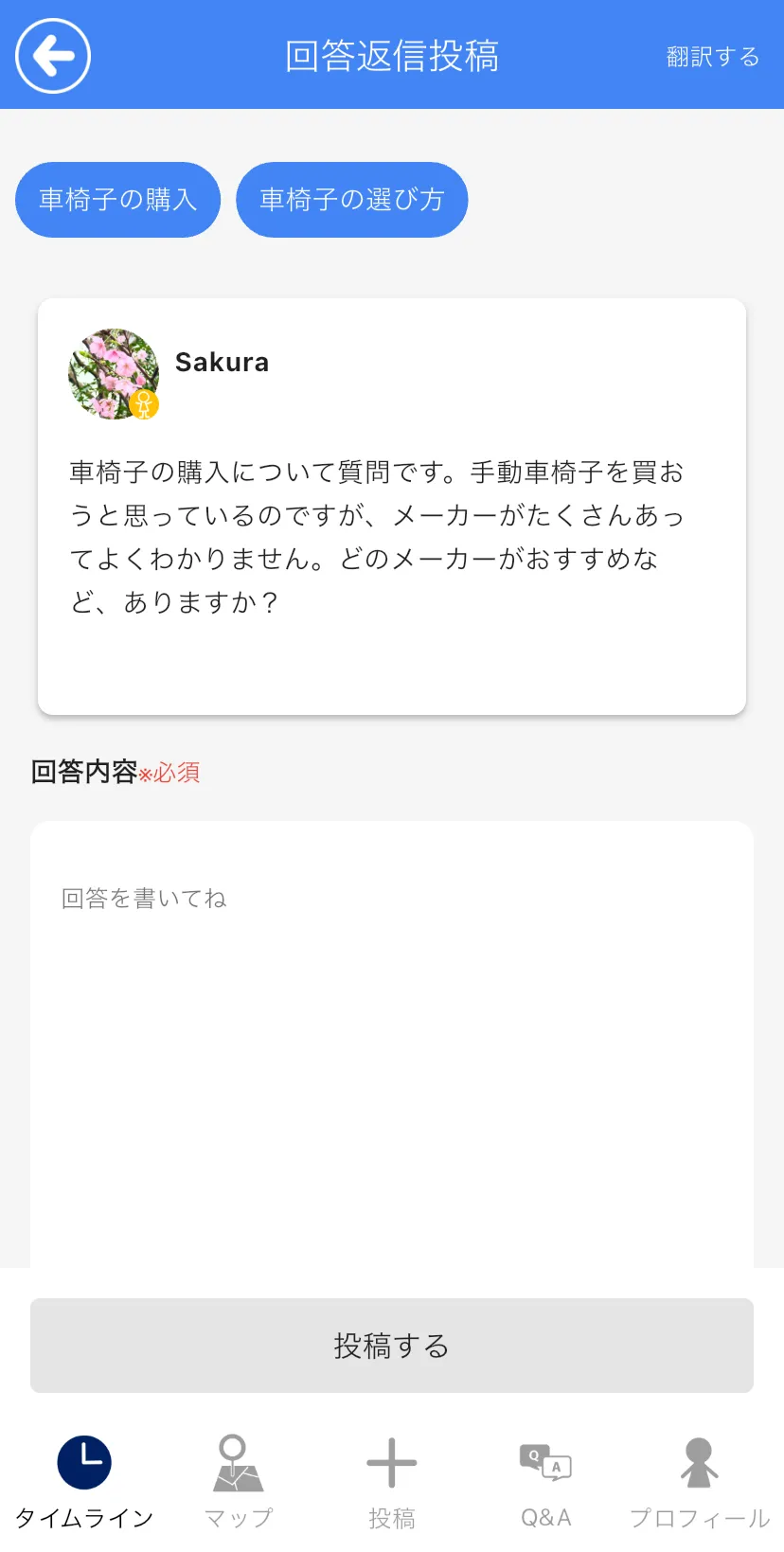
- Open the question's detail screen
- Tap "Answer"
- Enter your answer
- Attach a photo if needed (optional)
- Tap "Post"
- Your answer will appear in the list
4. Replying to an answer (e.g., saying thank you)
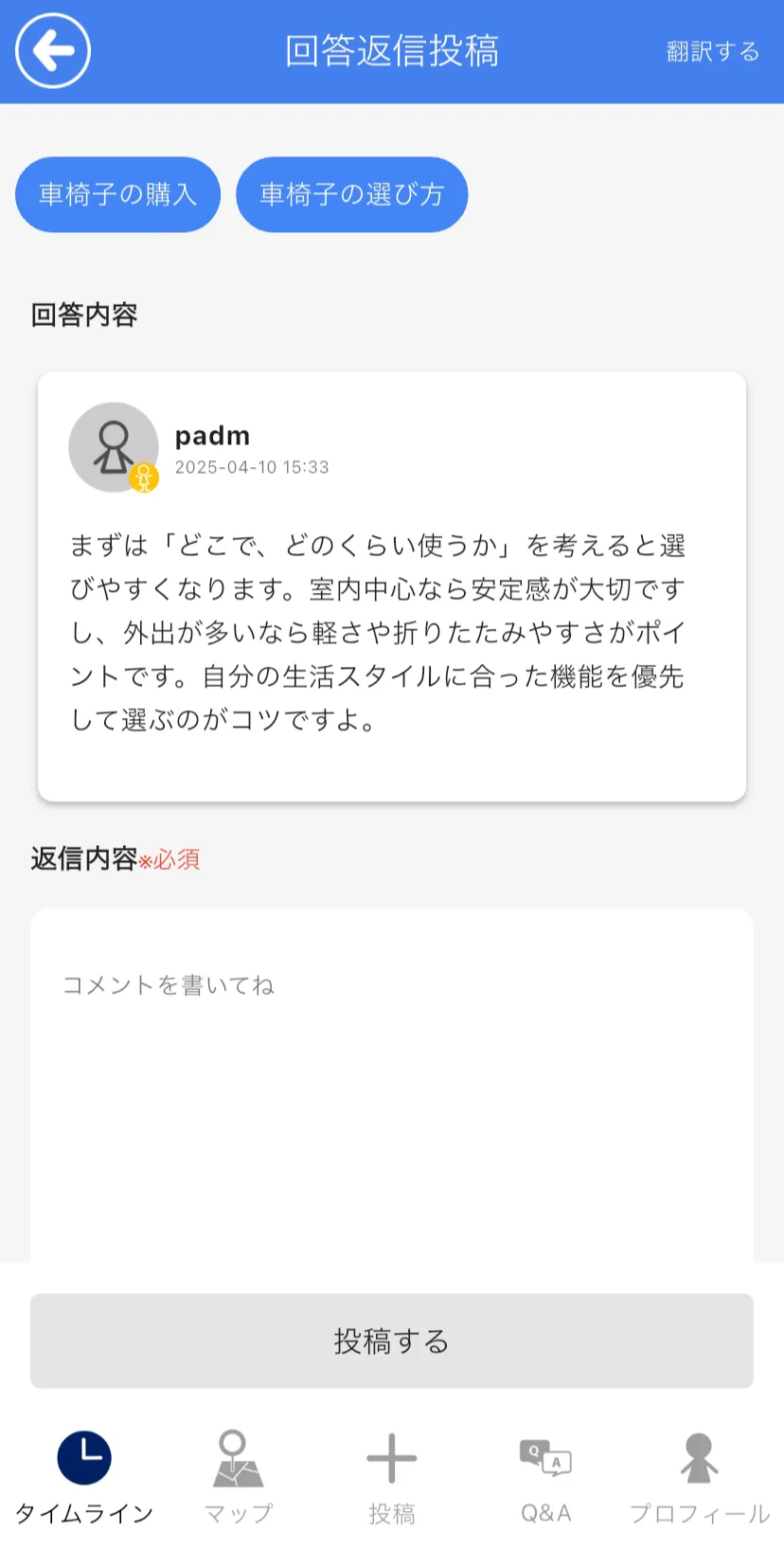
- Tap "Reply" below an answer
- Enter your reply in the reply field
- Attach a photo if needed (optional)
- Tap "Post"
All users can leave comments (replies) on each answer.
Once a question is marked as "Resolved", no more replies can be posted.
Write any thank-you messages or follow-up comments before tapping "Mark as Resolved".
5. Marking as resolved (question poster only)
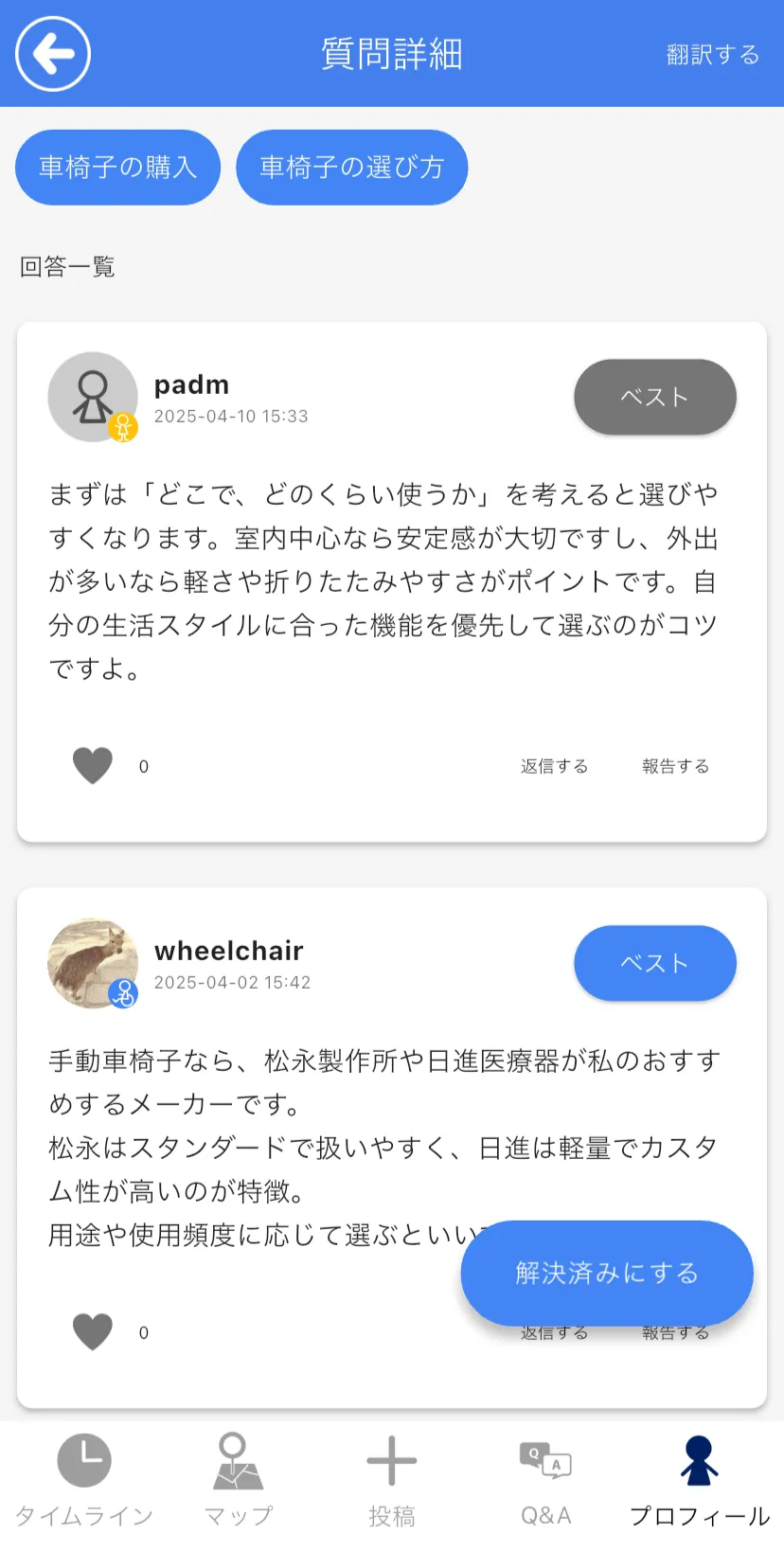
- Open the question's detail screen
- Optionally, tap the "Best" button on a helpful answer to select it as the best answer (optional)
- Tap the "Mark as Resolved" button to close the question
You can mark a question as resolved without selecting a best answer.
The best answer can be changed before the question is marked as resolved.
Once a question is marked as "Resolved", you can no longer change the best answer, post new answers, or add replies.
6. Viewing your questions and answers
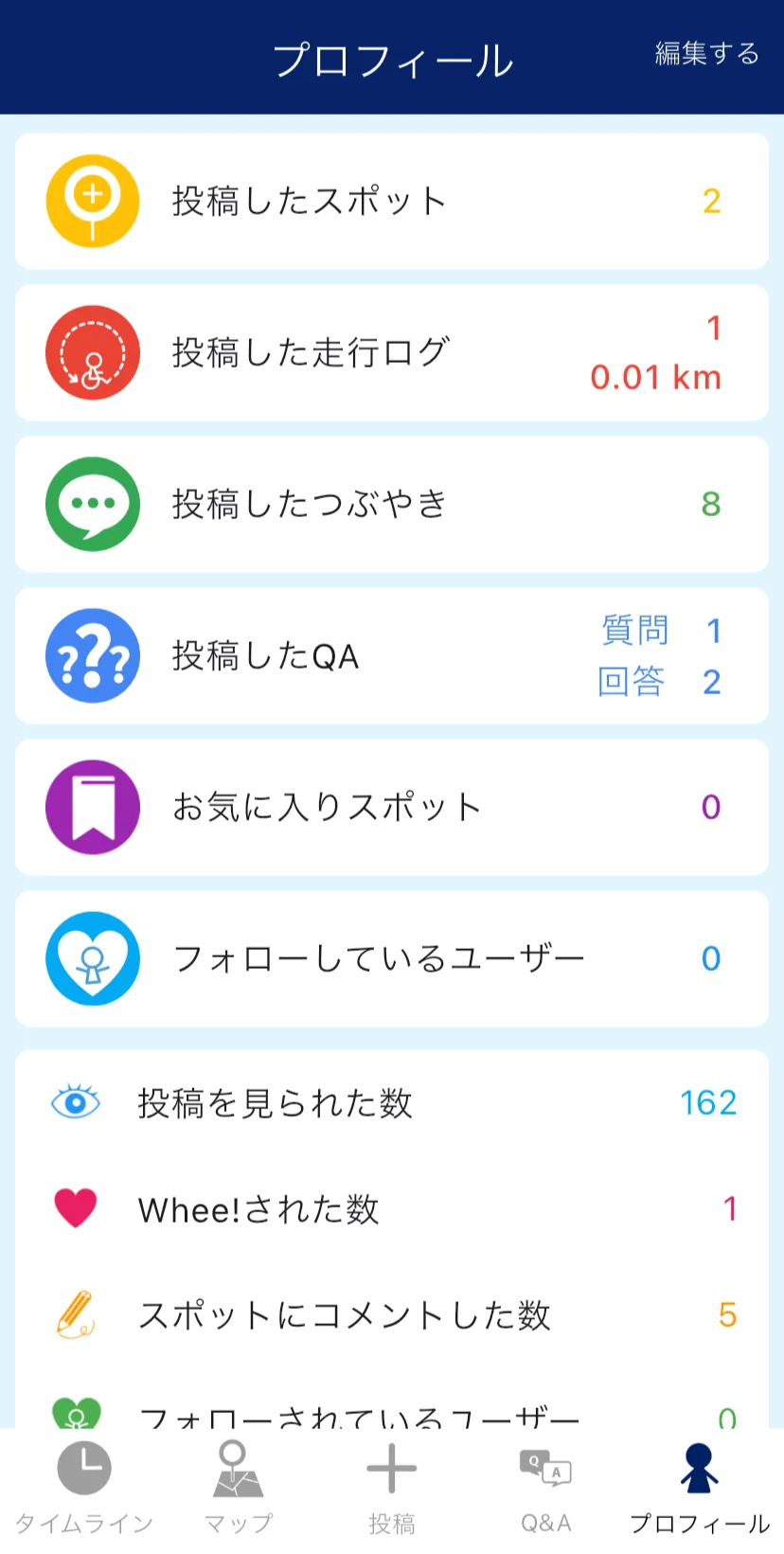
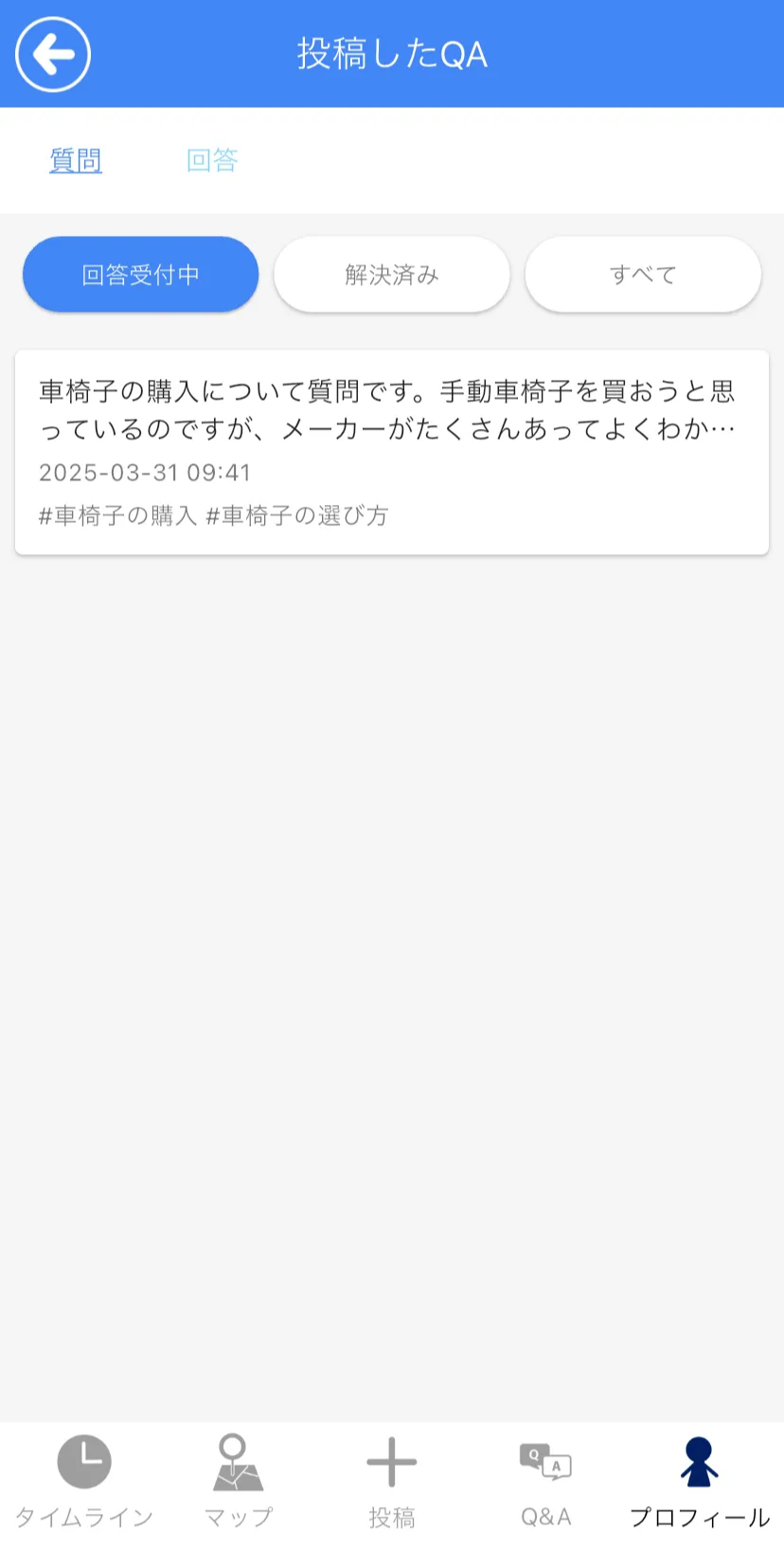
- Go to "Profile" → "My Q&As"
- Switch between "Questions" and "Answers" to view your own posts
- You can also filter by status such as "Accepting Answers" or "Resolved"
7. Supplement: About categories
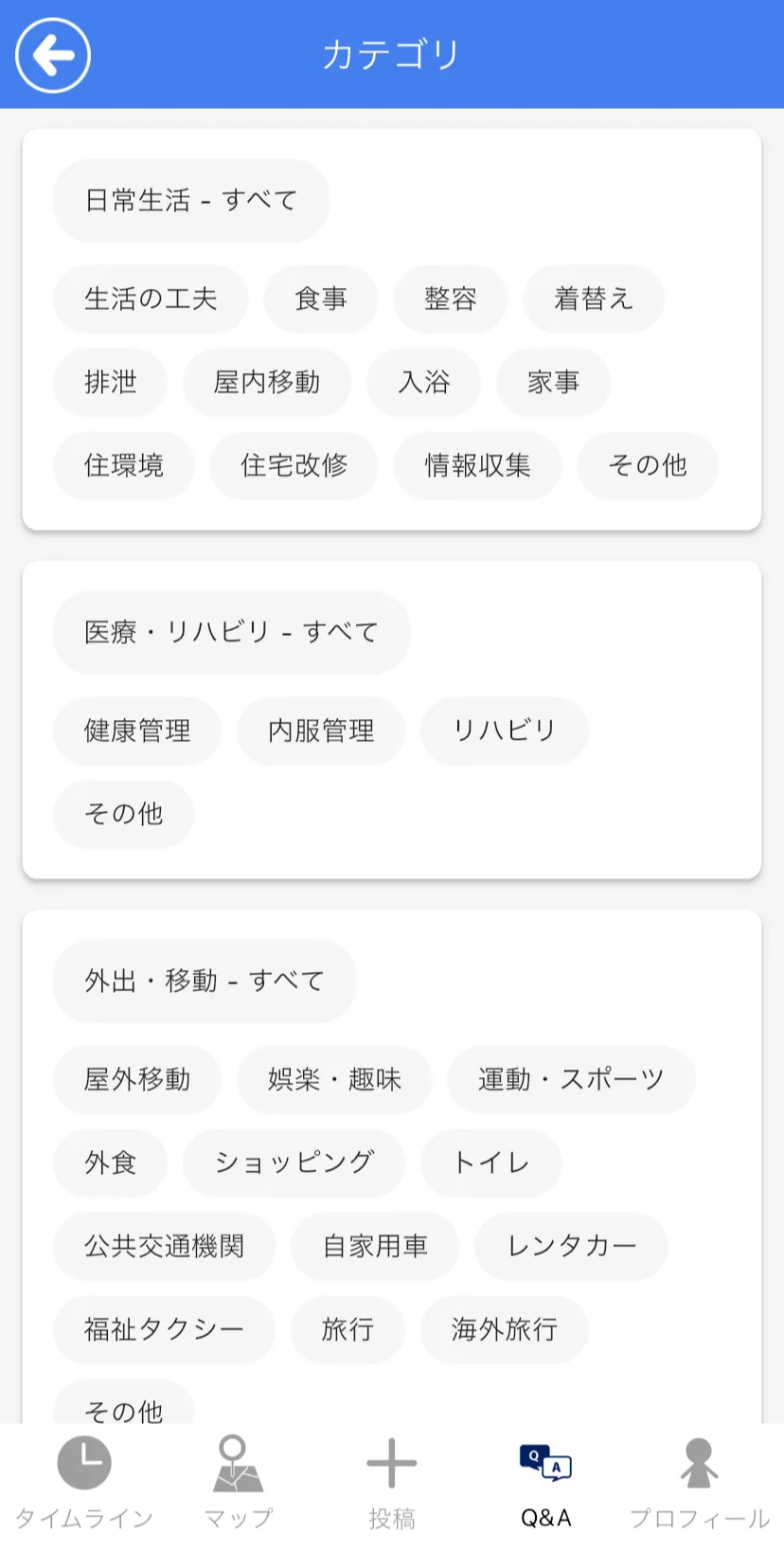
You can assign up to 3 categories when posting a question.
Organizing questions by category makes it easier for other users to find them.
- Wheelchairs (usage, selection, customization, etc.)
- Assistive devices & services (subsidies, rentals, visiting bathing services, etc.)
- Daily life, medical/rehabilitation, outings/transport, social activities, local areas, and more