How to Use the Web Version
Access barrier-free information on a larger browser screen.
Timeline
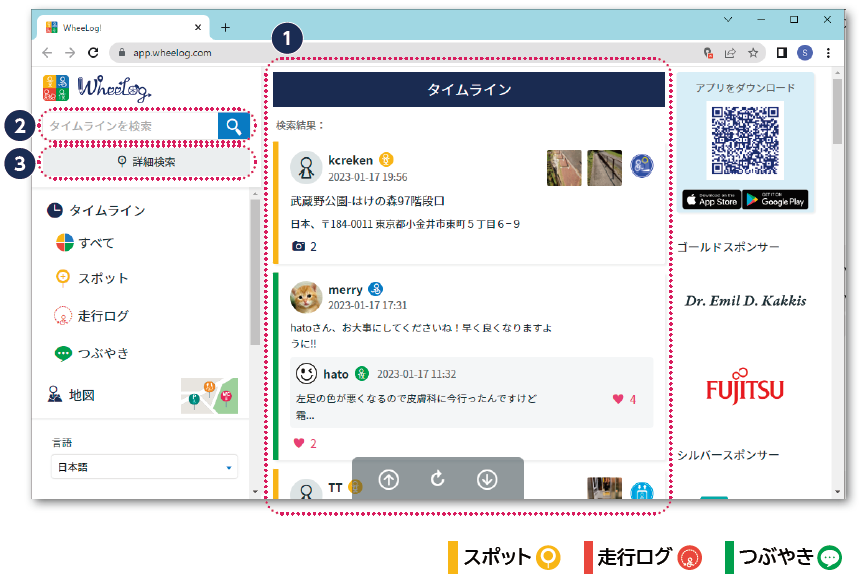
1. Timeline
- All timeline posts are displayed in the center of the screen.
- The color of the line on the left changes depending on the type of post.
2. Searching the timeline
You can search for posts in the timeline.
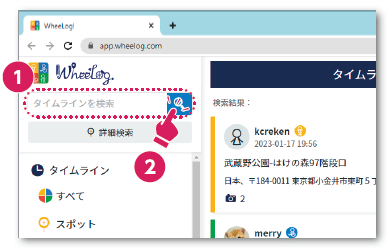
- Enter the text you want to search (e.g. Tokyo Station, restroom)
- Click the magnifying glass icon
3. Advanced search
You can set detailed conditions for what you want to find in the timeline.
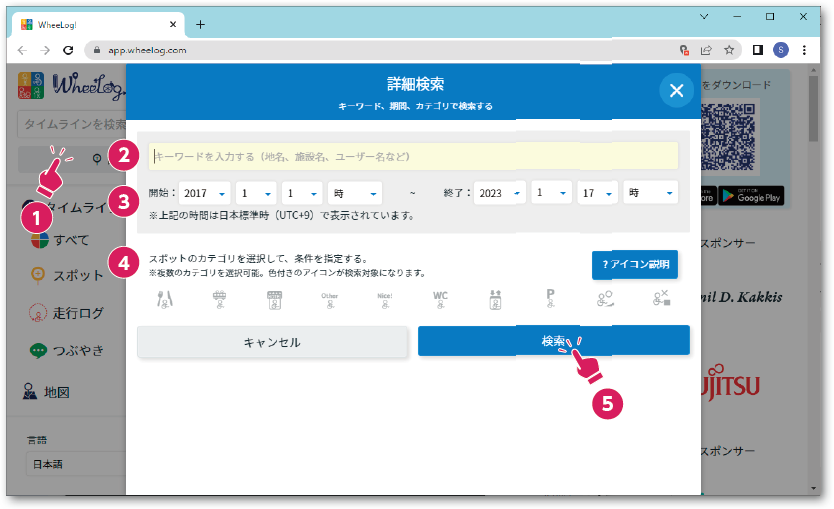
- Click Advanced search In the advanced search screen, set your word, date range, and spot conditions, then click the search button in the bottom right.
- Word settings You can specify a variety of conditions such as station names, facility names, and search keywords.
- Date range settings You can filter results by specifying a date range.
- Spot settings Select the spot conditions you want to display and specify your criteria.
- Click Search
Map
You can view travel logs and spots on the map.
1. Viewing spots on the map
-
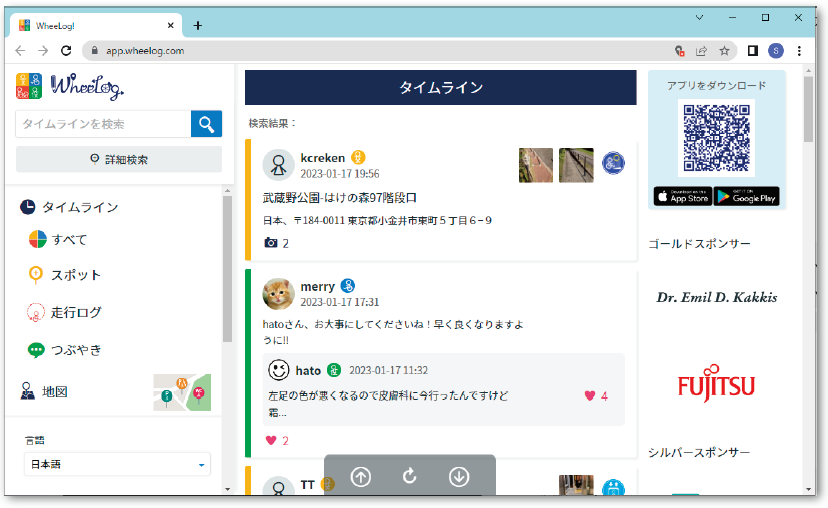
Click "Map"
-
Use the zoom buttons to navigate to the area you want to view
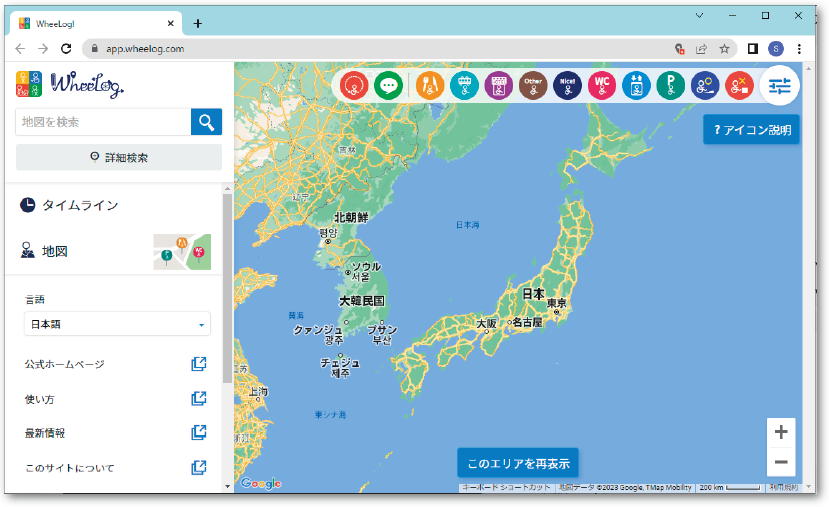
-
Click "Redisplay this area" to show the map
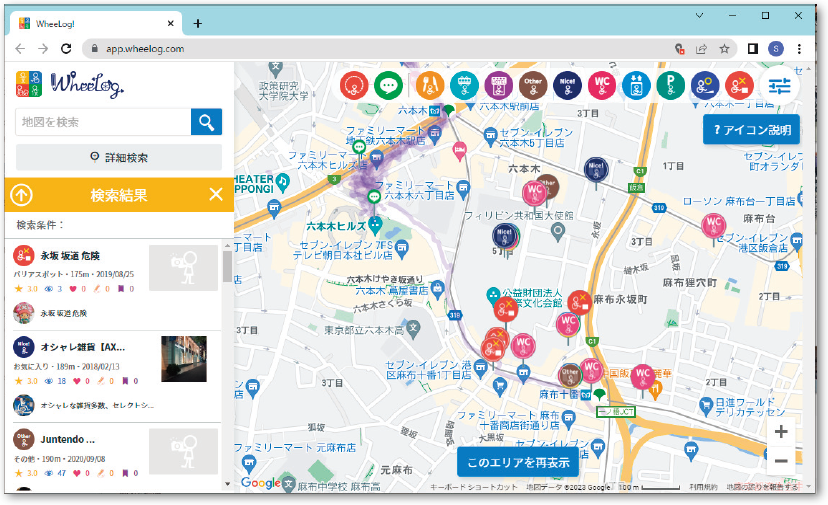 info
info- Clicking a spot in the left list or on the map lets you view the post's content.
- Clicking a post displays more detailed information in the center of the screen.
2. Display settings
You can filter the icons displayed using the display settings to show only the information you need.
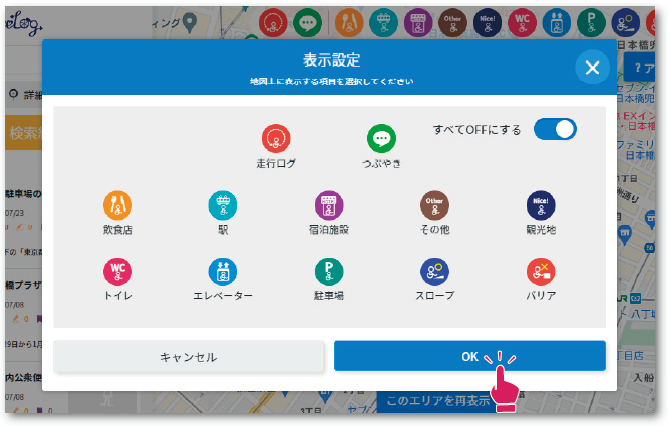
info
Clicking the filter icon in the top right of the map lets you apply filters to the spot posts displayed on the map.